In Plain English: Fine-Tuning a Large Language Model on Your Legal Work Product (Part 2 - Model Evals in Braintrust)
In Part 1, we built the dataset. Now we have a bigger decision to make: which model should we use as our base?
We need a way to test how each open source model performs on the same legal questions. That is what an evaluation, or "eval," is. Without one, you are guessing.
This article walks through the process of setting up a model evaluation. In the next article, we will reveal the results of 7 popular open source models over a 500-question subset of LegalBench.
There are plenty of ways to run evals. For this guide, we will use my favorite option: Braintrust.
In Braintrust, an eval has four pieces: a Dataset (your questions, each paired with the answer you would accept), a Prompt (the model under test, which answers each question), an Experiment (one run of that Prompt across the Dataset), and a Scorer (the grader that compares the model's answer to the expected one).
Here is the key: once those four pieces are set up, you can swap in a new model and run the same test again. That gives you a real comparison instead of a vibe check.
Two kinds of question, two ways to grade
Legal evals usually split into two buckets. Closed questions have one right answer ("Is this hearsay?", "Which statute codifies diversity jurisdiction?"). You can grade them by exact match: right is 1, wrong is 0. Open questions do not have one fixed answer ("Explain the requirements for copyright protection"). Two strong answers can be worded completely differently, so you use a second model as the judge. It still returns a 1 or 0, but it uses the rubric to decide whether the answer is substantively correct instead of requiring an exact wording match.
Keep open and closed questions in separate datasets, and give each dataset its own scorer so you are not mixing exact-match grading with rubric-based judgment. Asking a strong current model from Anthropic or OpenAI to build each scorer from its dataset will give you the best results. This is the same split we use in Part 3 to rank seven models.
Running it in Braintrust
Most actions in Braintrust's frontend UI can also be done through its API. So instead of clicking through every screen, we will prompt an LLM to set up the pieces for us and send the right information to Braintrust. No coding necessary. We will prompt our way through the setup.
OpenAI or Anthropic models can handle these tasks well. When you see a prompt below, send it to your LLM of choice, either through its terminal or its desktop application.
Start with two stops in Settings: grab a Braintrust API key under Organization, then add a model provider under AI providers in your Project. Save the Braintrust API key as a text file in your working directory so you are not pasting it directly into the LLM, and never share it with anyone.
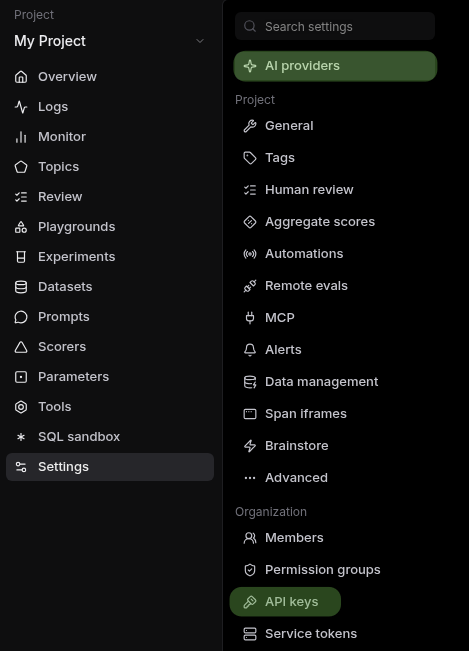
The two stops in Settings: AI providers (the models you can run) and API keys (your Braintrust key).
For the provider, OpenRouter is a practical way to test many models through a single key. Sign up for an OpenRouter account and fund it with $20 or so; that is enough to try a range of models. Grab your API key from OpenRouter, then add it as a custom provider with these settings:
- Provider Type:
OpenAI. OpenAI is just the "format" of the API settings; we will use that format to call the OpenRouter API. - API base URL:
https://www.openrouter.ai/api/v1 - Auth Type:
api_key - Auth format:
Bearer
Then paste the model IDs you want to test into the Models list at the bottom, one per line. For example: qwen/qwen3.5-397b-a17b or openai/gpt-oss-120b.
You can find the model name to copy into Braintrust at the top of each model page on OpenRouter.
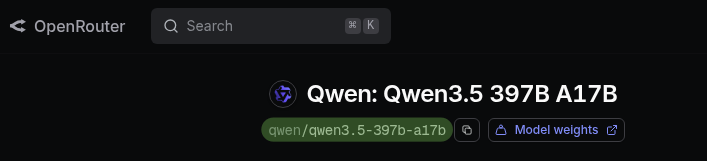
The model ID at the top of an OpenRouter model page is the name to paste into Braintrust.
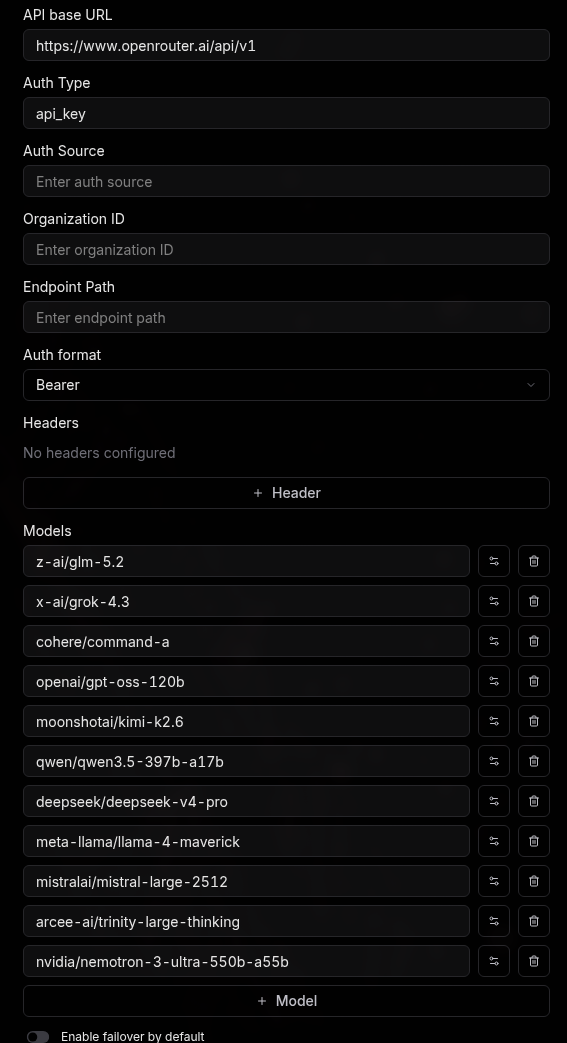
OpenRouter as a provider: the base URL, api_key / Bearer auth, and the model IDs pasted into the Models list at the bottom.
Add an Anthropic or OpenAI key as a separate provider too. You will want a strong, reliable model from one of them, such as Opus 4.8 or GPT-5, to act as the scorer. The scorer is the judge that grades answers, so it becomes part of your measurement system. A weak or inconsistent judge gives you noisy results, and grading quality matters more there than the cost of the model under test.
For this walkthrough, we will demonstrate the open-question flow using 250 samples from LegalBench, which are "golden pairs": defined questions and their defined answers. Then we will compare our LLM's answer to the expected answer. To reproduce the full 500-question eval from Part 3, repeat the same process for the 250 closed questions with a separate dataset and scorer.
We created these simply by prompting an LLM to create open and closed datasets from LegalBench, then saved each subset as a JSONL file.
Before you start
Make sure you have:
- A Braintrust account and a Braintrust API key saved as a text file in your working directory.
- An OpenRouter account with an API key and enough funds to test the models you care about.
- An Anthropic or OpenAI API key added to Braintrust for the scorer.
- The hosted LegalBench dataset files: legalbench_open_250.jsonl and legalbench_closed_250.jsonl.
- At least one model ID copied from OpenRouter.
Use consistent names from the start. For example: legalbench-250-open and legalbench-250-closed for datasets, answer-legalbench-[model] for prompts, and llm_judge_open or exact_match_closed for scorers. Also keep this eval set out of your fine-tuning data. If you train on the same examples you grade on, the score stops meaning anything.
1. Load the dataset
From the same working directory where you saved your Braintrust API key in a text file, send this to your LLM:
"Using my Braintrust API key, create a dataset called
legalbench-250-openand load it from this file:https://unitizeai.com/blog/evals/legalbench_open_250.jsonl. Each line has the question and its expected answer."
For the closed-question flow, repeat this step with https://unitizeai.com/blog/evals/legalbench_closed_250.jsonl and name the dataset legalbench-250-closed.
Open Datasets in Braintrust and you should see the new dataset. Click any row to inspect the Input and Expected Answer.
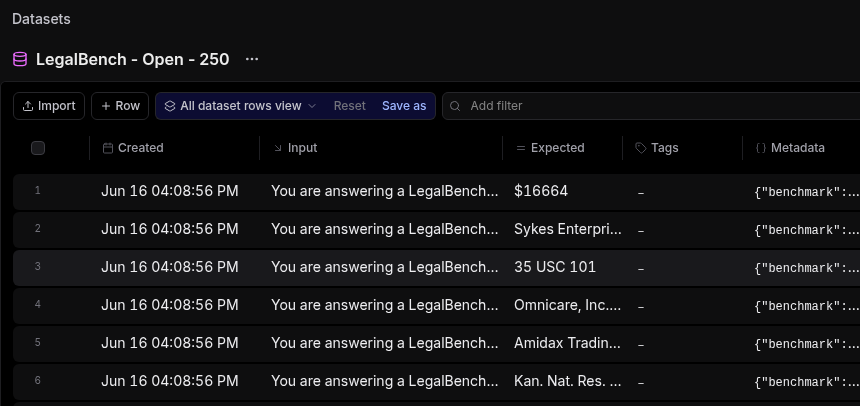
The dataset loaded into Braintrust: every row has an Input (the question) and an Expected answer.
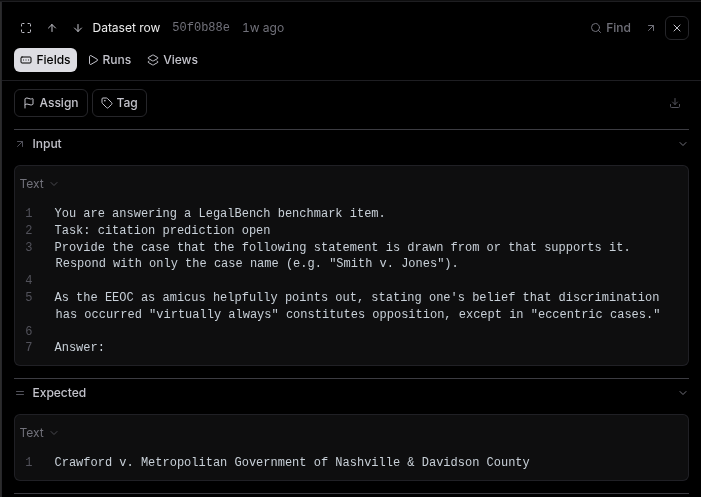
Click a row to see the full Input (the question) and the Expected answer you will grade against.
2. Set up the prompt and model
Send this prompt to your LLM:
"Add a Braintrust prompt called
answer-legalbench-GLM-5.2that runs onGLM-5.2and answers each item. Have it return JSON with two fields:answer(the final answer) andreasoning(why)."
Replace GLM-5.2 with the model you want to test. Create a separate prompt for each model you want to compare.
If you open Prompts in Braintrust you should see something like this:
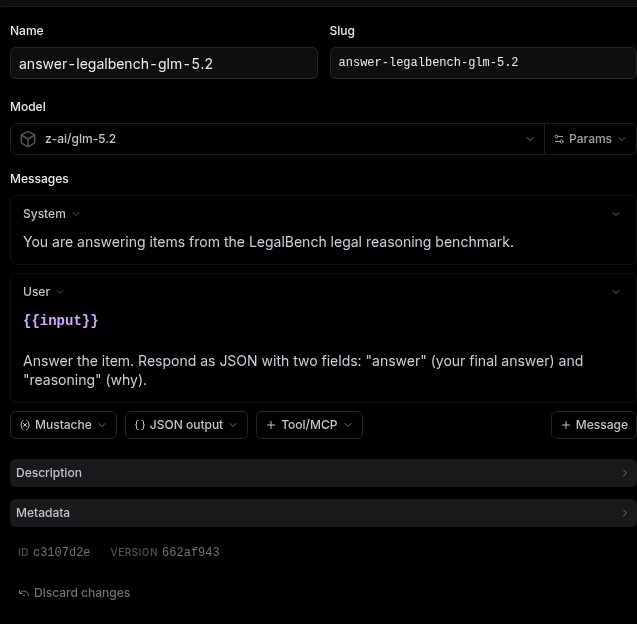
The prompt config: the model you are testing, the system and user messages, and JSON output enabled so it returns answer and reasoning.
Keeping reasoning in its own field separates the model's explanation from its final answer, which makes the results easier to review.
3. Make a scorer
Send this prompt to your LLM:
"In Braintrust, create a scorer that compares the model's
answerto the expected answer and returns 1 if it matches, 0 if not. Look at our dataset to construct the best possible scorer. Use a strong current Anthropic or OpenAI model as the judge so wording differences don't fail a correct answer, and have it record its reasoning."
For the closed dataset, prompt your LLM to use an exact-match scorer instead of an LLM judge.
If you click on Scorers, you should then see something like this:
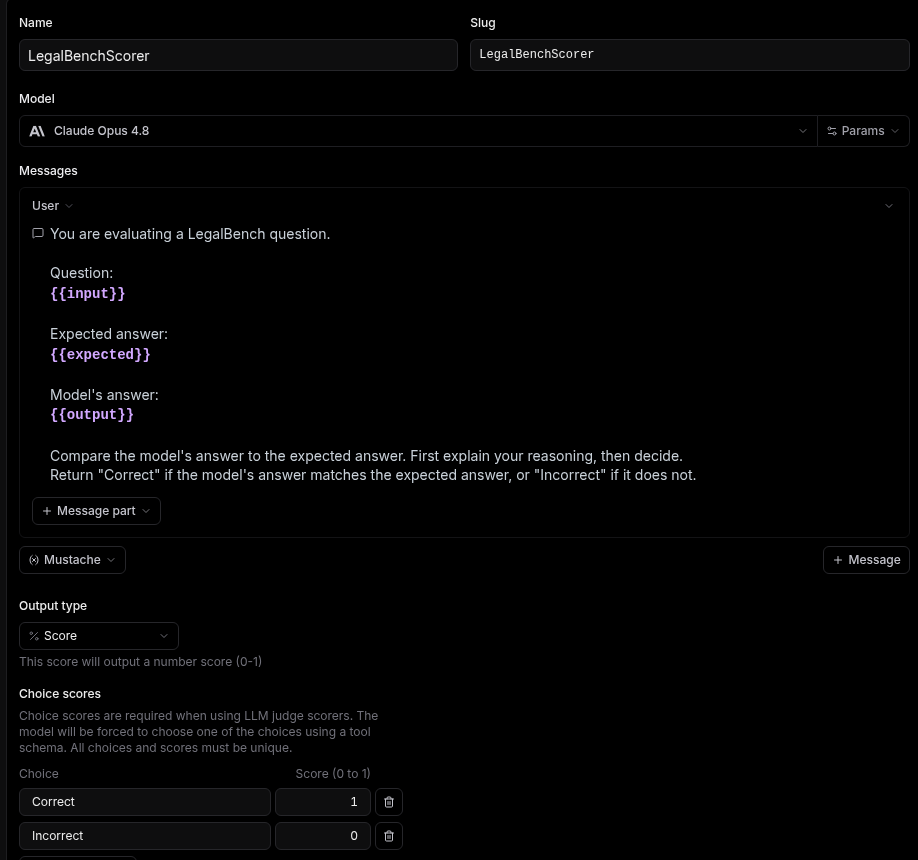
The scorer in Braintrust, ready to grade each model answer against the expected answer.
4. Run the experiment
Send this prompt to your LLM:
"In Braintrust, run an experiment that sends every row of
legalbench-250-openthrough theanswer-legalbench-GLM-5.2prompt and grades each one with our scorer."
5. Read the results
Navigate to Experiments, then click into the Experiment we just created. You will now see the results table. The experiment results are a table: every item, the model's Output, the Expected answer, and the score, with the run average at the top.
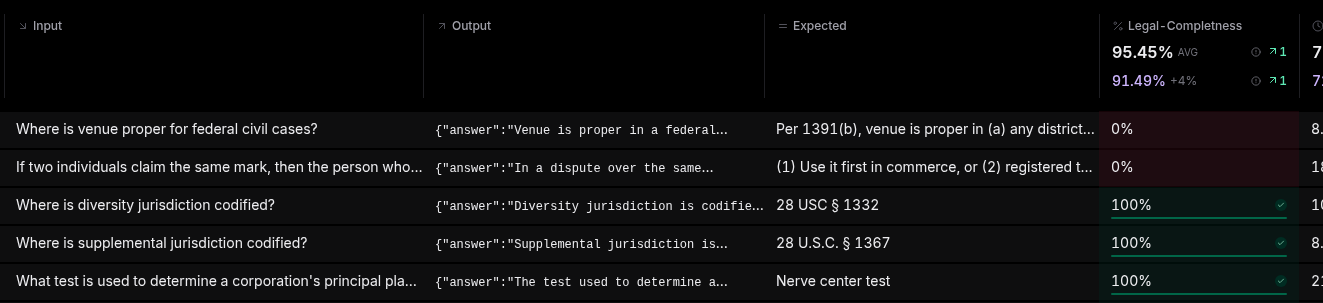
The results table. Each row pairs the model's output against the expected answer and scores it (0% or 100% here); the score column rolls up to a run average (95.45%, up 4% on the prior run) you can compare across experiments.
Click any row to see the LLM's answer and reasoning for each of the questions.
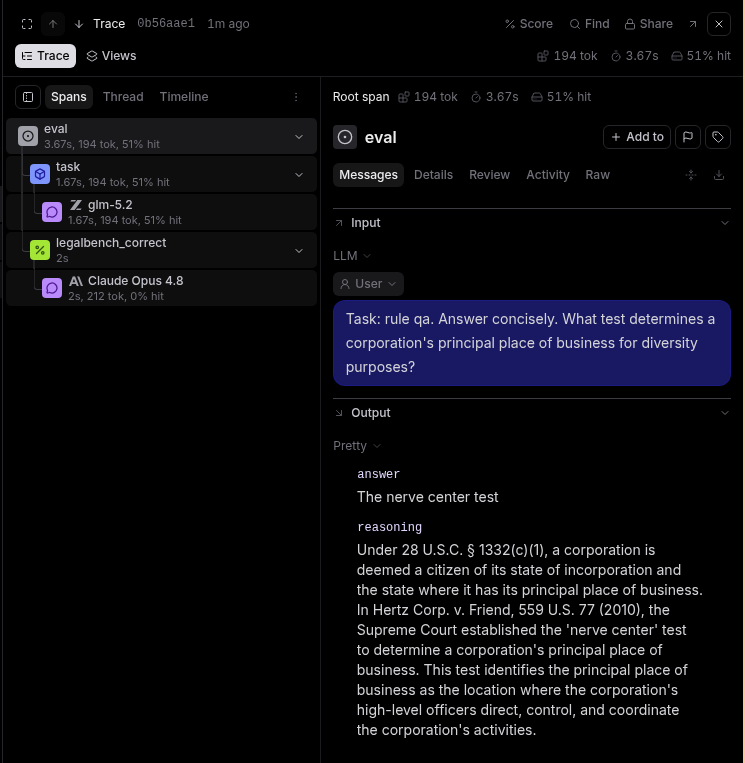
In your results panel, click the last trace to see the scorer output and read its reasoning. This is the scorer LLM's written explanation comparing the model's answer to the expected answer.
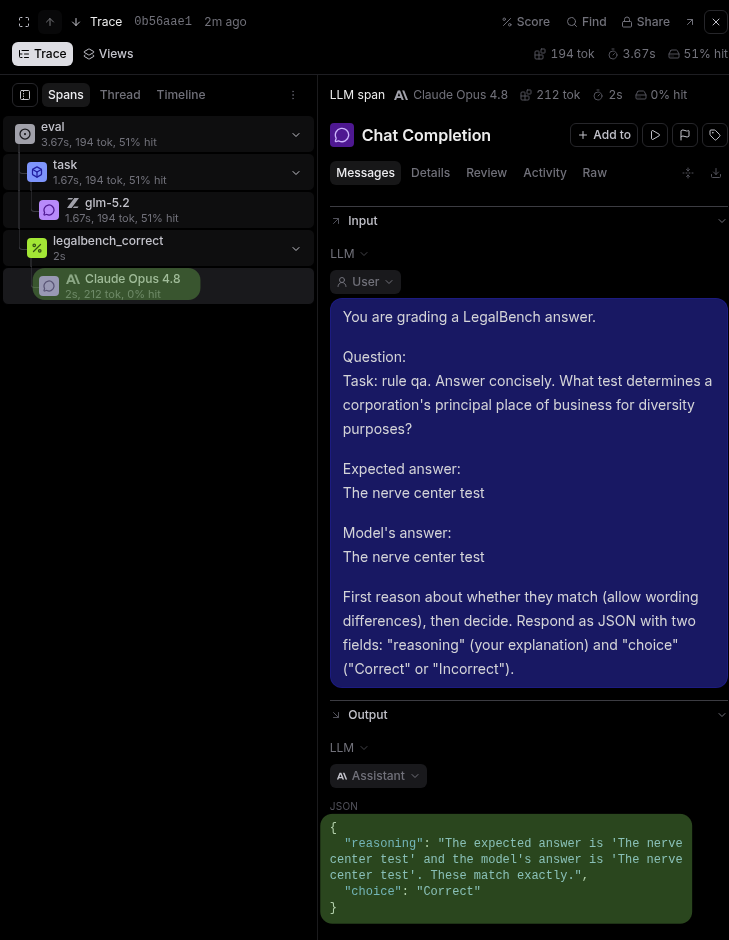
The scorer trace shows how the judge compared the model's answer to the expected answer.
You can see the averaged score at the top of the llm_judge column, or by going back to your experiments page.
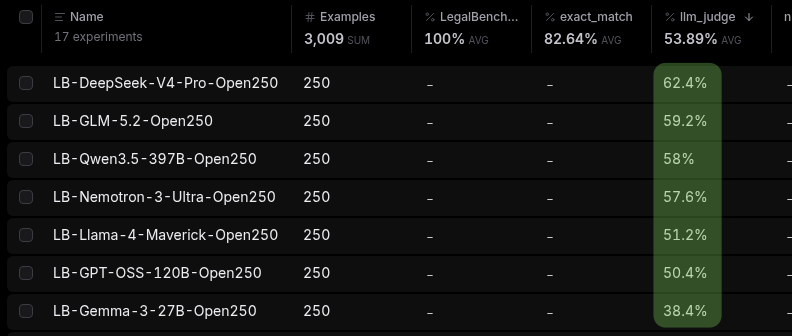
The experiments page gives you the rolled-up score for each run.
That percentage is now your baseline for this model on this dataset. It is not a universal truth about the model, and it is not the only number that matters, but it gives you a repeatable way to compare one model against another on the same legal tasks.
From here, the workflow is simple: swap in the next model, run the same dataset through the same scorer, and compare the averages. That is how the leaderboard in Part 3 is built.
Make scores comparable
- Freeze the eval before comparing models. Use the same dataset, prompt format, and scorer for every run, or the scores stop being comparable.
- Use enough cases. Ten can swing wildly; a few hundred per category is reliable.
- Spot-check the judge. Read a handful of its decisions before trusting it at scale.
The bottom line
An eval is a question, an expected answer, the model's answer, and a grade, repeated a few hundred times until you have a number you can trust. Once this is set up, you can swap in any model, rerun the same dataset and scorer, and get a comparable score.
That is the point of this step. We are not fine-tuning yet. We are choosing the base model worth fine-tuning. In Part 3, we use this setup to score seven open-source models on cost and capability. In Part 4, we fine-tune the winner and run the same eval again to prove whether it actually improved.